
How to sign PDFs and protect your signature with Face ID
Step-by-step guide to drawing, coloring, and securely reusing your signature in PDFfy.
PDFfy lets you sign any scanned document in seconds—right on your iPhone or iPad, without printing and re-scanning.
1. Draw your signature
Open PDF Preview and tap the signature icon in the top-right corner. In the Draw Your Signature sheet, draw your signature with your finger or Apple Pencil.
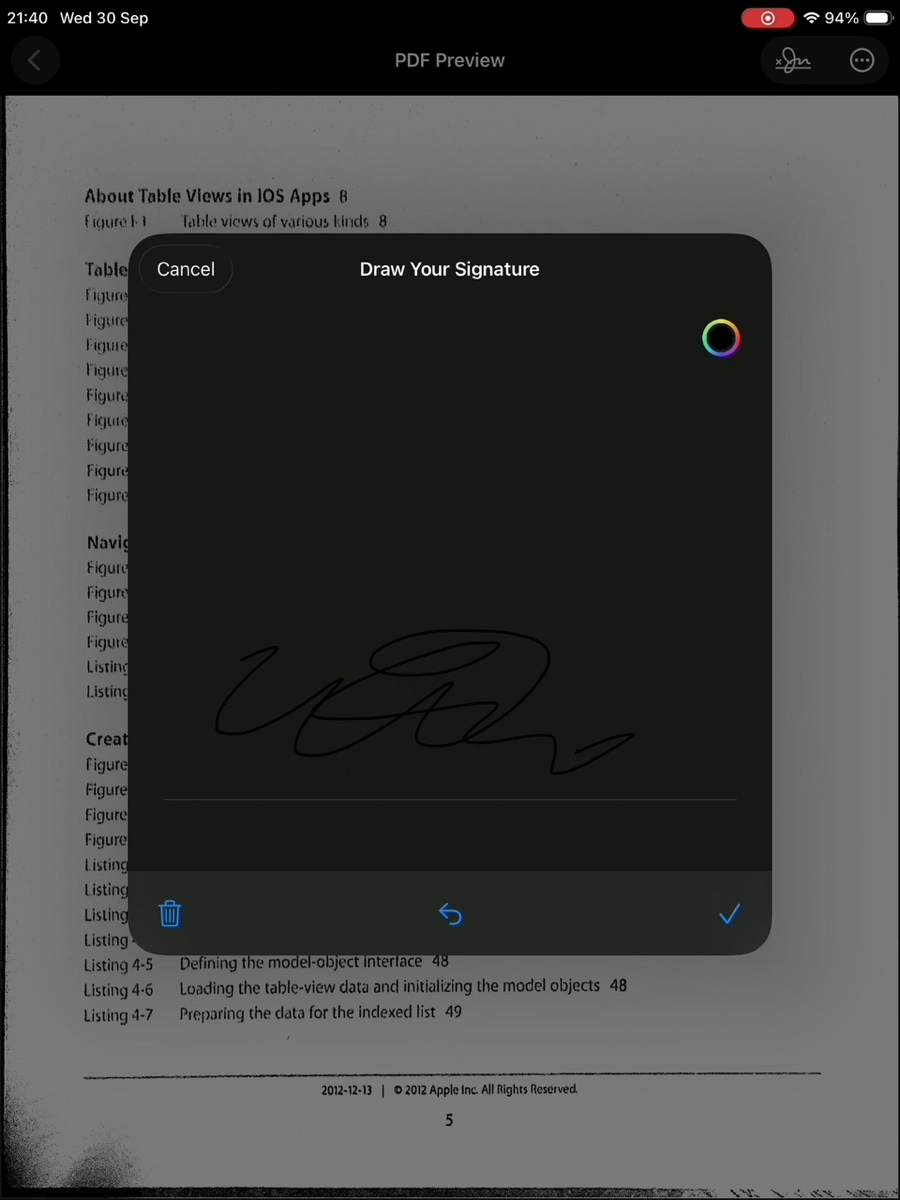
You can pick your preferred ink color right away—classic blue, black, or any custom shade from the color picker.
2. Lock it behind Face ID or Touch ID
Tap the checkmark and choose Save if you want to reuse your signature later. Saved signatures are stored locally on your device and require Face ID or Touch ID authentication before they can be placed on a document.
3. Place and resize on the page
Drag the signature anywhere on the page, resize it, or adjust its color live on the document.
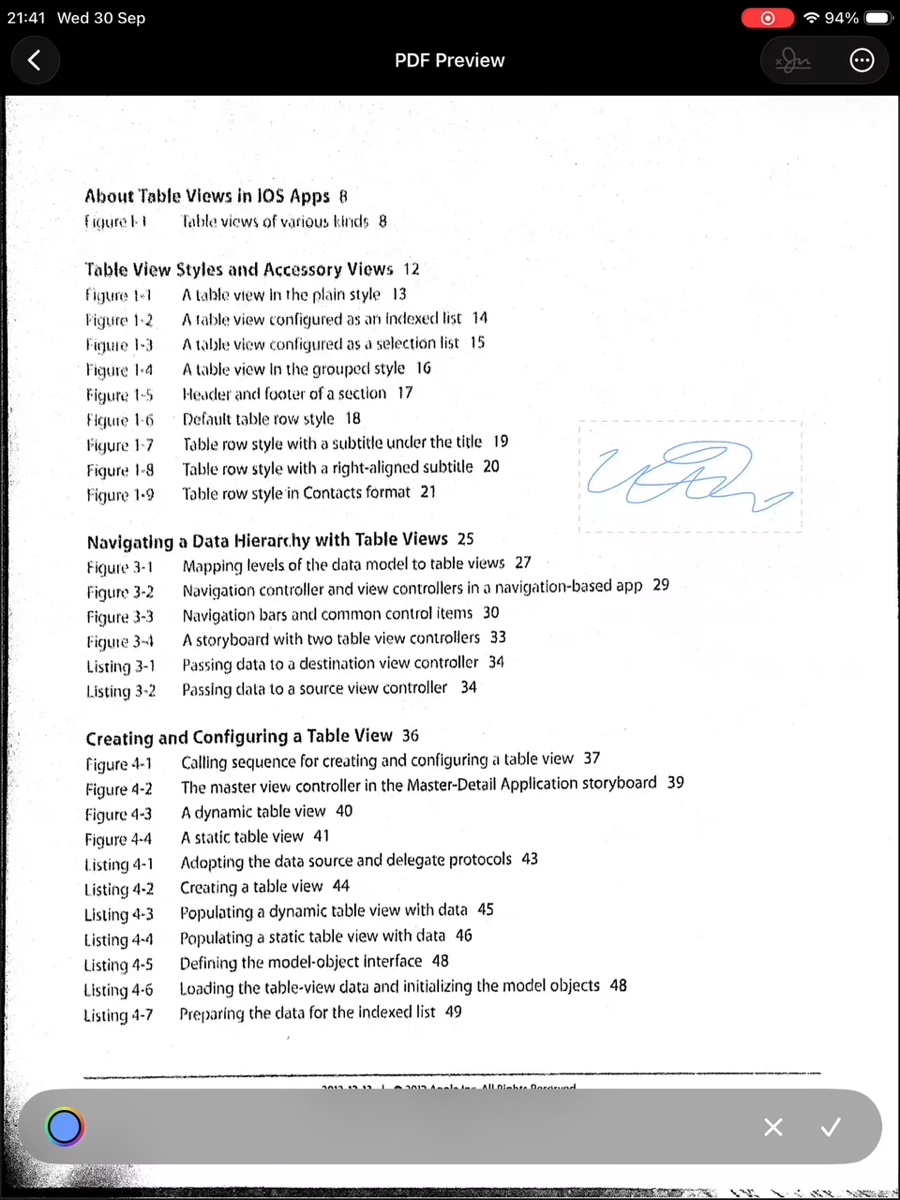
When you’re done, tap the menu button in the top-right corner to share the finished PDF via AirDrop, email, or print it with AirPrint.